Log footage can look washed out before color conversion. To grade it, first match the camera's recording profile with the right technical transform, then choose a creative look. ReelClip keeps those two steps separate so you can adjust the style without replacing the camera conversion.
Selecting a log profile does not install a conversion LUT. You need a compatible video file and a matching camera-conversion .cube file for the log workflow described below.
Which camera profiles can you select?
- DJI: D-Log, D-Log M and D-Log 2.
- Apple: Apple Log and Apple Log 2.
- HDR: HLG and PQ, handled separately from imported log-conversion LUTs.
- Standard: footage that is already display-ready.
- Other log: another log source with a matching imported camera transform.
Automatic detection can use supported metadata and filename hints. Check the selection against your camera settings: a filename is a suggestion, and transfers or earlier edits can change the information available to the app.
Sony, Canon, Panasonic and Blackmagic are not named profile presets in ReelClip. For footage from these cameras, use Other log with the correct conversion LUT, provided the iPhone can decode the video file. A camera brand alone does not establish compatibility with every codec or RAW format.
Convert log footage before adding a creative look
- Import your clip. Use the original recording where possible and confirm its recording profile and gamut.
- Choose the source profile. In the color controls, check the detected profile or select the matching log option.
- Import the camera transform. Choose a .cube conversion that matches the camera, recording curve and gamut. Check its documentation for the expected output color space. A log profile marked “LUT needed” still needs this file.
- Add a creative LUT. Select a look intended for the converted image. The universal creative packs expect normalized sRGB/Rec.709 input. Use the strength control to adjust the creative effect.
- Review, then export. Check skin tones, bright skies and shadow detail. Editing and preview are available free; saving the finished video requires Pro/Creator access.
Apply the technical conversion once. If another editor has already converted the file to standard SDR, select Standard rather than applying the original log conversion again. A double conversion can produce excessive contrast and clipped detail.
For more on creative LUT selection and import, see how to apply a LUT on iPhone. You can also browse camera-conversion resources and starter looks.
Compare real footage before and after
Drag the slider to compare real stock-footage frames with illustrative grades. Log is on the left for the log examples; the display-ready city example is labelled Original. The graded result is on the right. Each scene includes its footage source and license link.
Real footage · before and after
Outdoor portrait / Warm Daylight
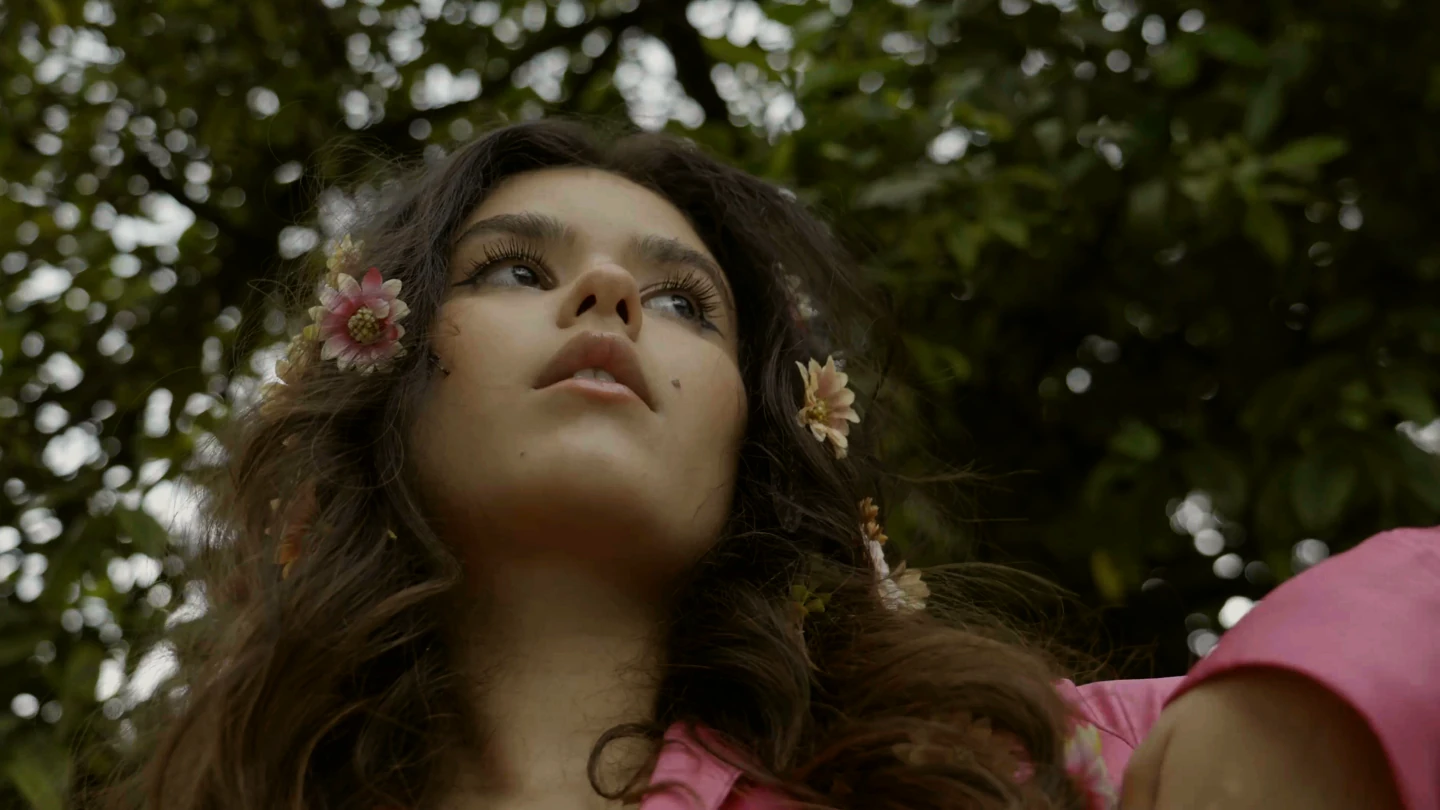
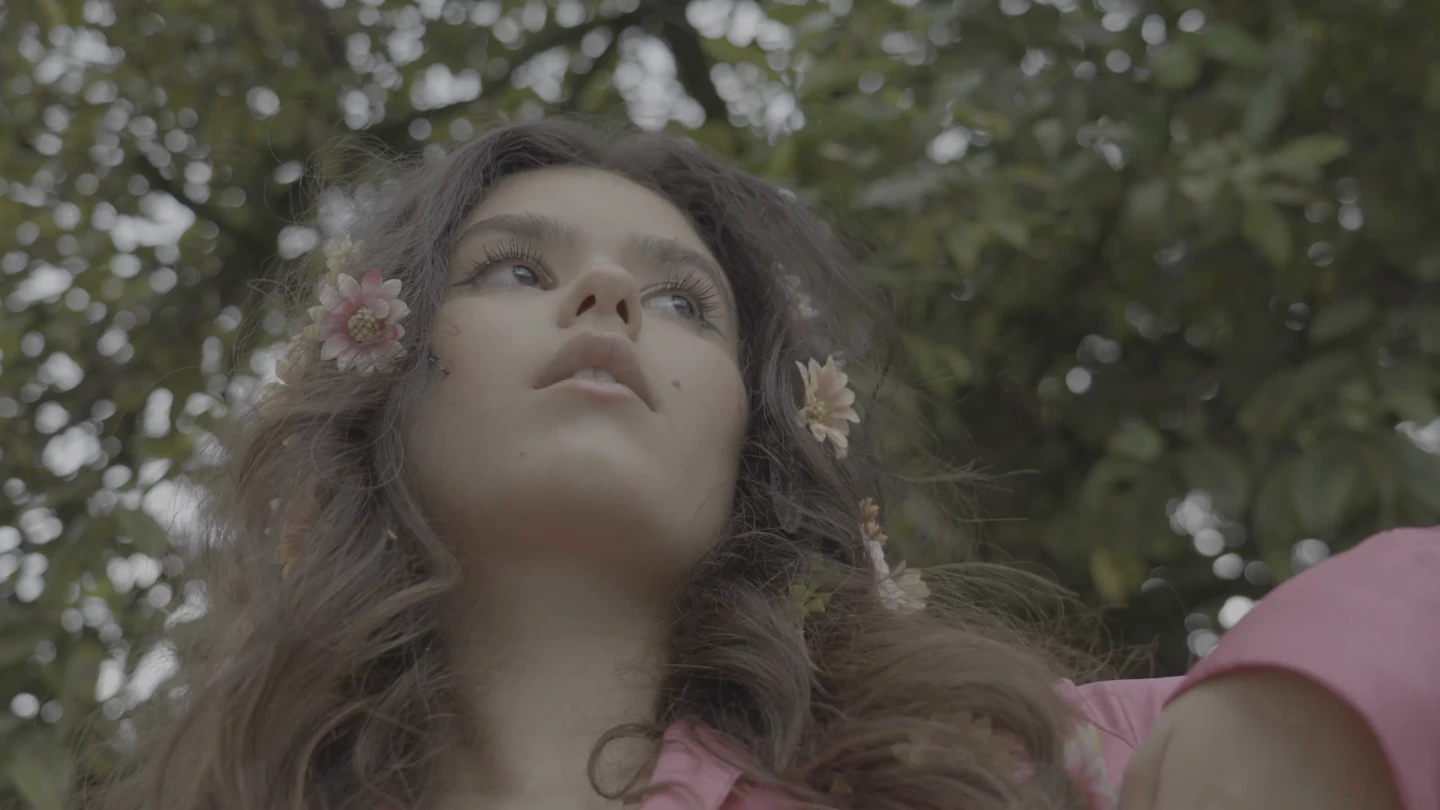
Illustrative balance + Warm Daylight starter LUT.
Drag across the image, or focus the comparison and use the arrow keys. Before is on the left; graded is on the right. Home shows the grade; End shows the source.
Real stock footage. Log examples use an illustrative contrast/saturation balance followed by the named ReelClip starter LUT. The architecture example already looks display-ready and receives only Classic Mono. Uploader descriptions do not establish the recording curve and gamut of the downloaded files; these are grading illustrations, not calibrated camera conversions. No AI generation or subject replacement.
Footage: Rafael Nicida / Pexels · License
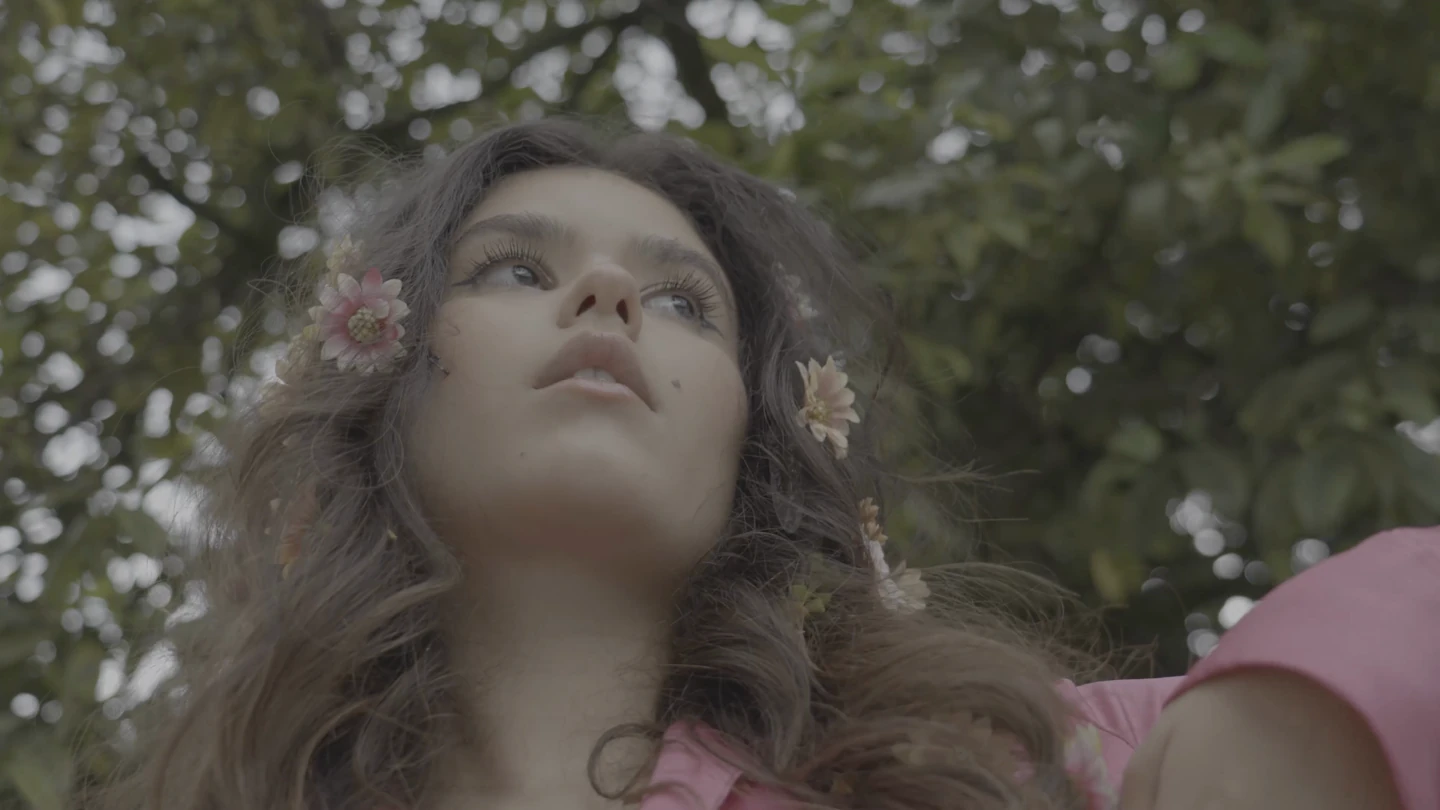
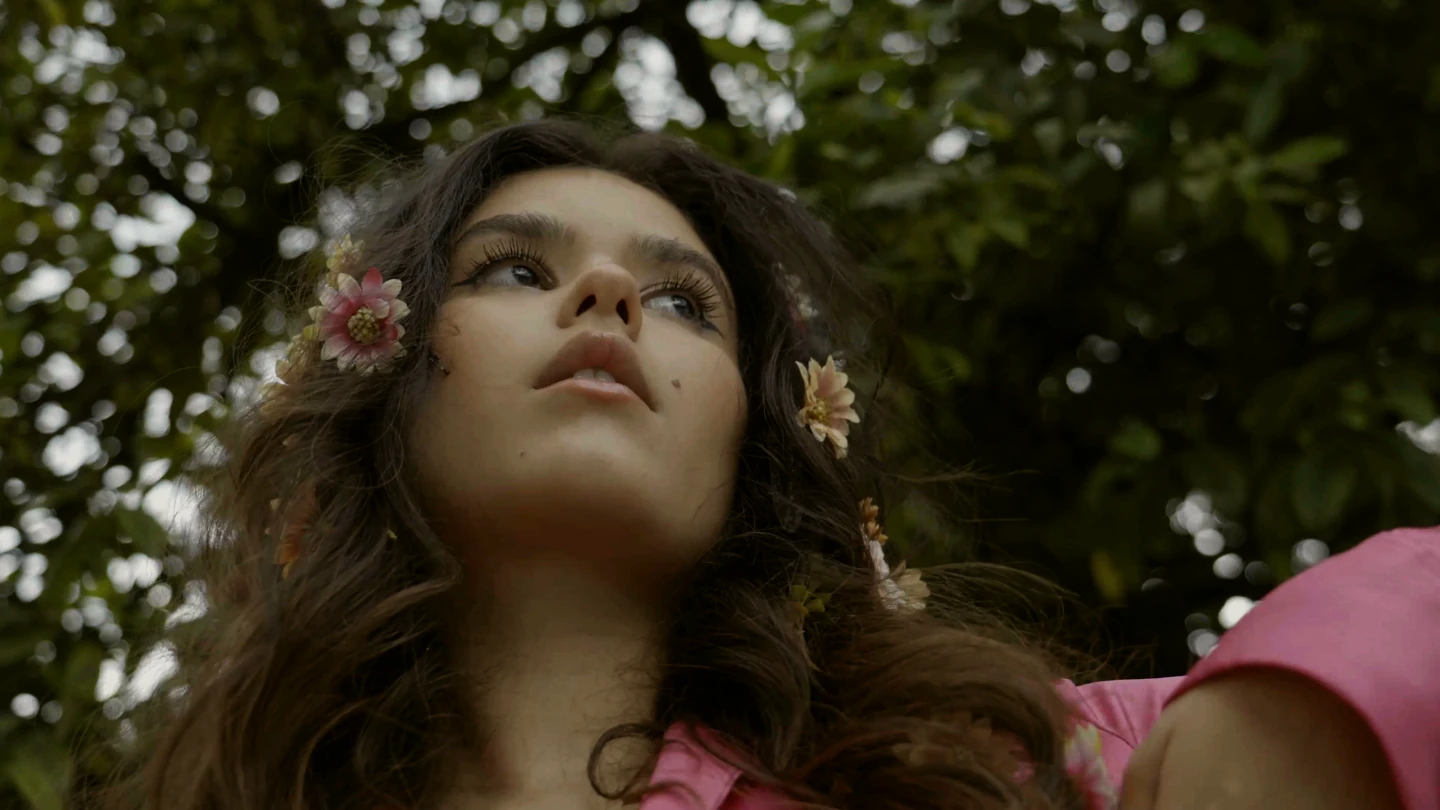
These examples use the same real footage and starter looks as our free LUT guide. The illustrative balance is not a calibrated manufacturer conversion. Evaluate a look on your own footage before deciding whether it suits your project.
Camera conversion and creative LUTs do different jobs
A camera conversion maps a specific recording encoding into the intended working or display space. Match both the log curve and color gamut: two files described as “log” can need different transforms.
A creative LUT styles the converted image. It can warm highlights, cool shadows or reduce saturation. It cannot correct a wrong source transform, and a LUT alone does not add film grain or halation.
ReelClip applies the supplied camera transform before the creative look. Keep the technical conversion in the camera-transform control and the style in the creative-look control. Check each LUT's input requirements rather than assuming every .cube file serves the same purpose.
If the result looks wrong
- Still washed out? Confirm that a camera transform is loaded, not just a log profile selected.
- Too contrasty? Check for a conversion applied twice and confirm that the creative LUT expects your converted color space.
- Unnatural colors? Recheck the recording gamut, white balance and conversion file before increasing the look strength.
- A file will not import? Check the video container and codec. Selecting Other log does not add support for an otherwise unsupported video format.
Try the workflow on your own footage
Start with a short clip containing a face, neutral objects and some bright detail. Review the camera conversion with the creative look disabled, then add the look at a moderate strength. Clips from different cameras may still need individual exposure and white-balance adjustments.
Color preview and rendering run on-device. You can import, edit and preview before upgrading. Video export requires Pro/Creator access; available purchase options include recurring plans and lifetime access. A standalone LUT-pack purchase does not unlock video export.