App control reference · English
ReelClip controls: split a recording into equal clips
In Cut, choose No gap, set Clip amount, check the calculated Clip duration, then Add the plan and preview its consecutive sections.
Reviewed . The app version in this recording is not established.
Before you start
- The recording starts with a video already imported and Cut selected; importing is not demonstrated.
- This example uses the whole 4m14.2s source. Coverage is limited to the selected source window when a shorter window is chosen.
- Control meanings were cross-checked against the app catalog and the visible states in this recording. The app version and its match to the current source build are not established.
Existing native app recording with a few frames held for readability. It demonstrates planning and previewing three equal sections, without a completed save to Photos.
Follow the recorded steps
Choose No gap 0:00
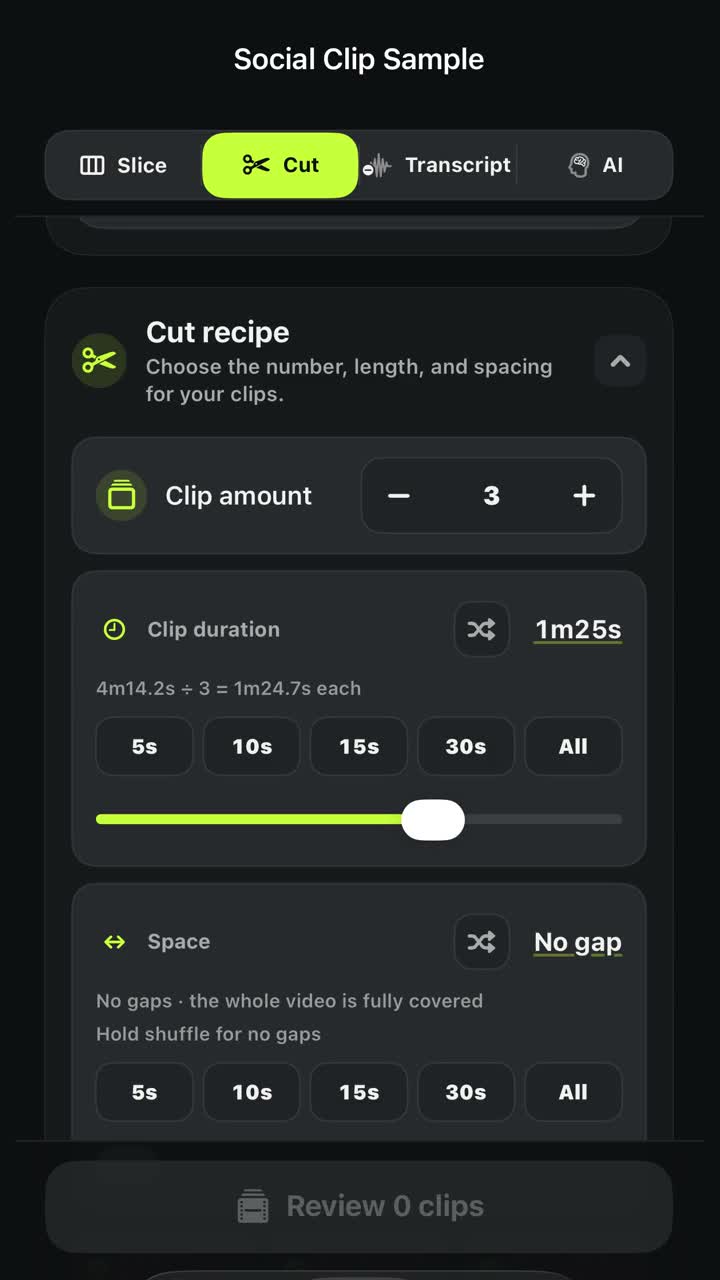
Start in Cut with the full source selected. Hold the Space shuffle button until No gap appears. Check the whole-video coverage message.
Set the clip count and check duration 0:04
Use Clip amount to choose three clips. Check No gap remains selected and read the calculated 1m24.7s duration; the main label rounds this to 1m25s.
Add and check the planned ranges 0:12
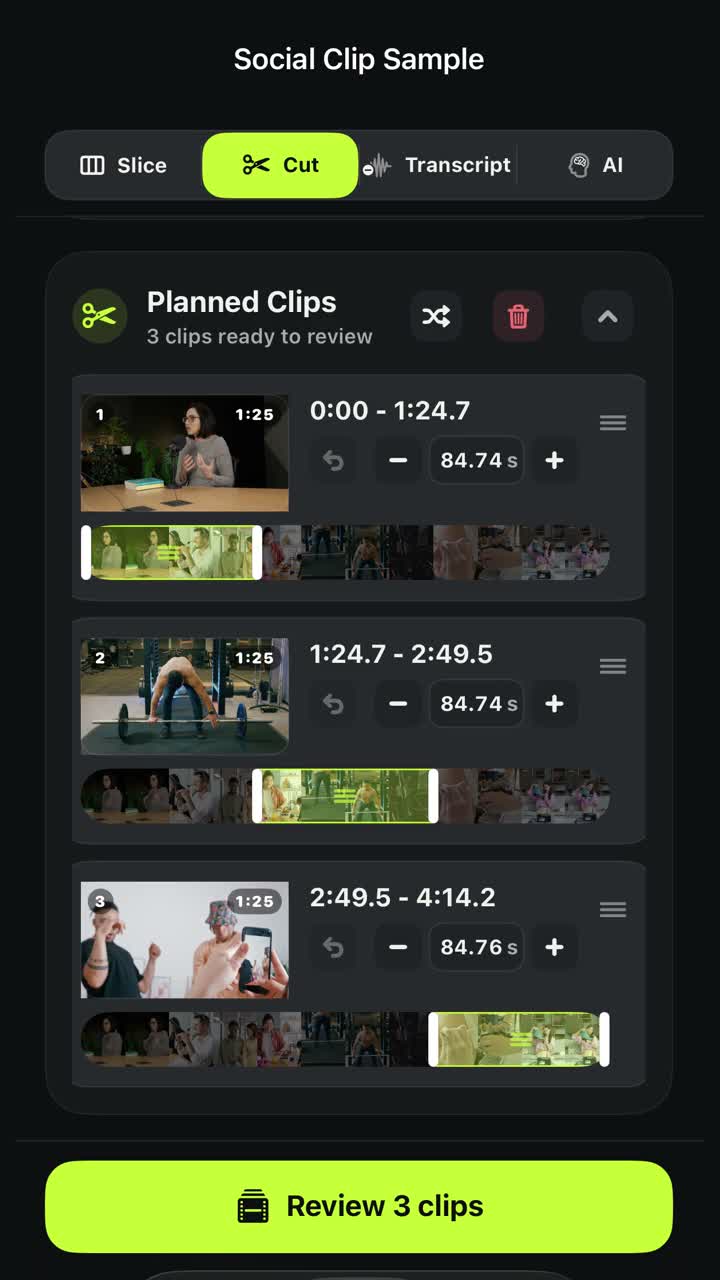
Tap Add. Check that all three ranges meet end to start and cover 0:00–4:14.2 in Planned Clips.
Preview the three planned clips 0:17
Open the review and play each planned section. The walkthrough shows actual previews of all three; it ends before any completed Photos save.
What each control means
Cut
Where: Editing mode selector, above Cut recipe.
Choose a recipe using clip count, clip length and source spacing.
In this recording: Cut is already selected when the walkthrough starts.
Space / No gap
Where: Space row in Cut recipe; hold its shuffle button.
Space controls source time skipped between planned clips. Holding this row's shuffle button chooses No gap and turns off random spacing.
In this recording: Space changes from 10s to No gap. The recipe displays: No gaps · the whole video is fully covered.
Clip amount
Where: Minus and plus controls at the top of Cut recipe.
Set the requested number of clips. With No gap and count-based sizing, changing this count recalculates the equal clip duration for the selected source.
In this recording: The minus control changes four clips to three. The rounded Clip duration changes from 1m04s to 1m25s.
Clip duration
Where: Duration row below Clip amount.
Clip length is separate from skipped source spacing. In this count-based No gap example, check the calculated duration after setting the count.
In this recording: The large label reads 1m25s. The more precise readout is 4m14.2s ÷ 3 = 1m24.7s each.
Add
Where: Cut recipe action, after checking the recipe values.
Add the current Cut recipe to Planned Clips for review. This action does not save the clips to Photos or publish them.
In this recording: Three consecutive ranges appear in Planned Clips and the bottom action becomes Review 3 clips.
Check the result against this example
Source: 4m14.2s. Clip amount: 3. Space: No gap. The main duration label reads 1m25s; the precise readout is 4m14.2s ÷ 3 = 1m24.7s each.
- 0:00–1:24.7
- 1:24.7–2:49.5
- 2:49.5–4:14.2
The visible duration and range labels are rounded. Use the actual planned ranges, rather than assuming every displayed value is exact to a frame.
Reviewed app screenshots
What this recording establishes
- Space skips source time; it does not insert black frames or a blank pause into the output.
- Add creates a plan. Previewing that plan does not establish a successful save to Photos.
- The recording does not show importing, purchasing, a completed export or posting to a social platform.
- This is an English-control reference for this recording. Translated guide instructions and captions do not change the language of the app pixels.
- The example demonstrates equal sections, not a prediction of social reach or an automatic choice of the best moments.